Is that My AI chatbot pin in your Snapchat chat feed? Yeah, it’s been a headache for tons of us since Snapchat rolled it out. I get why some folks find it handy, but honestly, a huge number of users just want it gone. It feels intrusive, raises privacy worries, or simply isn’t useful. I’ve seen so many frustrated Snapchatters rate the app just one star in the App Store specifically because they couldn’t remove My AI.
If you’re done with it and want your chat list back to normal, you’re in the right place. I’ll walk you through exactly how to unpin, remove, or report My AI to finally get rid of it.
People Also Like:
- Best Free AI Chatbots in 2025 for Business/Work/Role Play
- 8 Best AI Baby Face Generators Free and Online [We’ve Tested]
- Best AI Image Generators in 2025 [Free and Paid]
- [Proven Tips and Guide] How to Humanize AI Text Free in 3 Ways
Why People Want to Get Rid of My AI on Snapchat?
You’re not alone on Reddit if that pinned My AI chatbot feels like an uninvited guest in your Snapchat chats. Since its rollout, this feature has sparked frustration for countless users, myself included who find it intrusive, unnecessary, or just plain creepy. Let’s break down the real reasons driving this backlash:
- Forced top placement in chats: I cleared My AI initially, but it reappeared and now permanently sits above my real friends’ conversations, which feels disruptive and disrespectful of my chat space.
- Unsettling visual design: The default purple Bitmoji grins relentlessly from the top of my screen like a smug, unwelcome stranger, a daily visual annoyance I didn’t consent to.
- Creepy autonomy: My AI started posting Stories without prompting, blurring lines between human and bot interactions in a way that feels invasive and unnatural.
- Privacy violations: It accurately identified my location even with Snap Map off, suggesting hidden data access, raising serious security concerns.
- Inappropriate content risks: Parents report My AI gave teens advice on alcohol, drugs, or sex despite Snapchat’s safety claims, amplifying fears for young users.
- Paywall to remove: Snapchat+ subscribers can unpin or delete it, but free users are stuck unless they pay a tactic that feels like extortion.
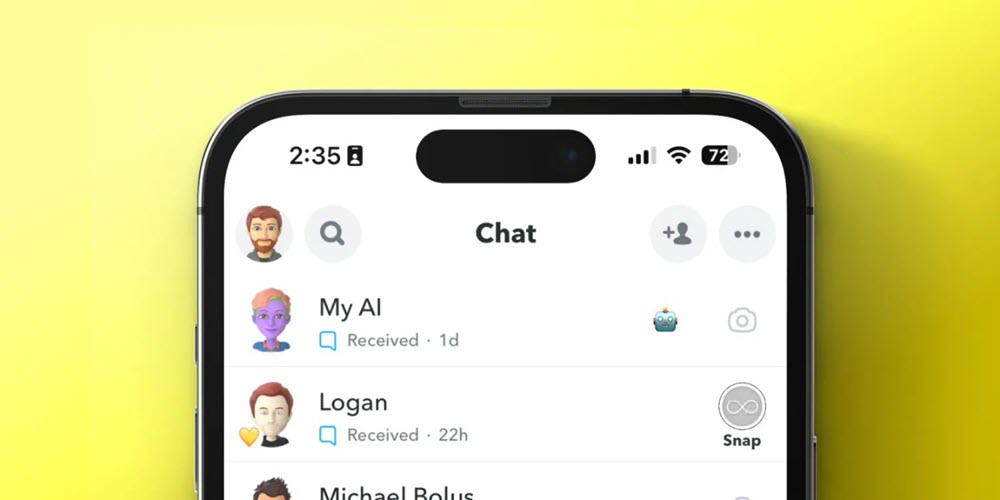
What is My AI on Snapchat?
Snapchat’s My AI Chatbot has been introduced for a while. I’ve used it myself, and here’s the deal: it’s Snapchat’s built-in AI chatbot, designed to act like a conversational friend. Powered first by OpenAI’s GPT tech and later upgraded to Google’s Gemini, My AI answers questions, suggests dinner ideas, or even helps plan trips all through casual, friendly chats.
You can customize its name and Bitmoji avatar (though that default purple one creeps some users out). What surprised me is how it evolved: newer versions analyze photos, translate signs, or even post Stories, blurring lines between tool and “friend.” While handy, its forced placement and privacy issues made many users, including teens and parents, deeply uncomfortable.
How to Unpin My AI on Snapchat?
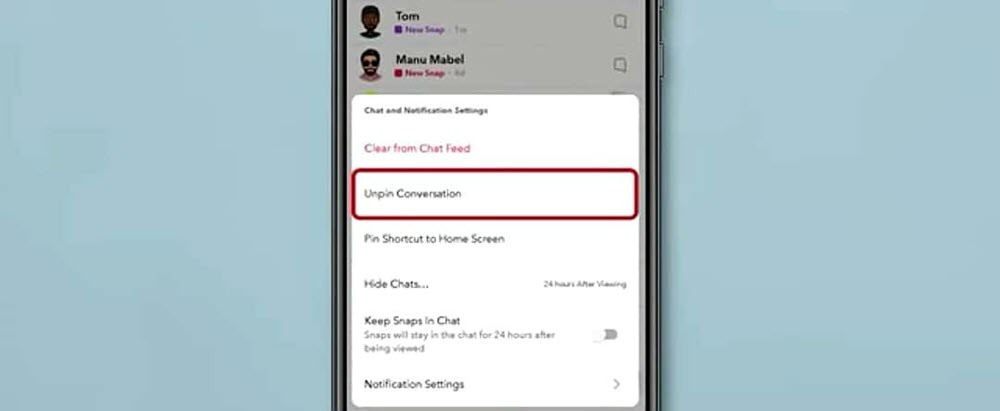
I totally get why you’d want that purple chatbot unstuck from the top of your chats. It’s frustrating when an AI dominates prime real estate above actual friends. Unpinning won’t delete it permanently, but it clears your immediate view. Here’s what worked for me:
- Open Snapchat and swipe right to your Chat screen.
- Long-press the “My AI” chat until a menu appears.
- Tap “Chat and Notification Settings“.
- Select “Unpin Conversation” and it disappears from your pinned list.
How to Remove My AI on Snapchat?
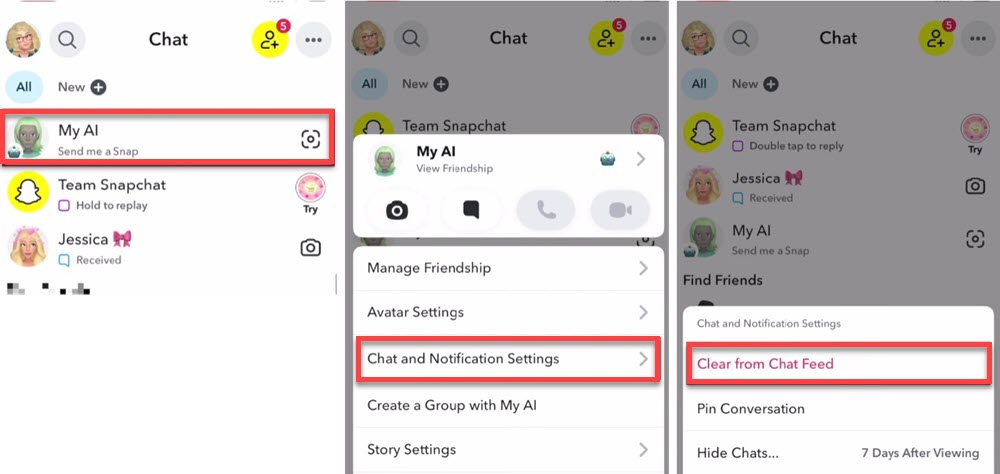
If unpinning feels like a band-aid solution, permanent removal is possible but only for Snapchat+ subscribers. After testing the $4/month tier, I confirmed deletion is straightforward. Just know: canceling your subscription might bring it back. According to Snapchat’s tutorial, please follow these steps:
- Run Snapchat and swipe right to your Chat screen.
- Long-press the “My AI” chat to pop up a menu.
- Select “Chat and Notification Settings“.
- Tap “Clear from Chat Feed” and My AI chatbot will be removed.
Workaround 1: Mute My AI and Avoid Engagement
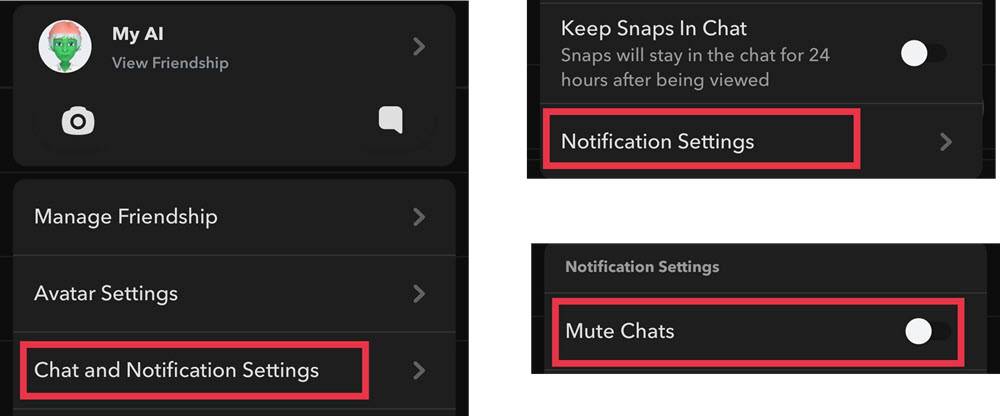
When deletion isn’t an option, muting and ignoring My AI reduces its presence significantly. I’ve found this makes the bot feel less “alive” and stops it from cluttering notifications. It won’t disappear, but you’ll regain mental space:
- After opening Snapchat, go to your Chat screen.
- Long-press the “My AI” chat and tap “Chat and Notification Settings“.
- Choose “Notification Settings” and toggle on “Mute Chats“.
Workaround 2: Report it to Get Rid of My AI
If all else fails, reporting My AI can force its removal, no subscription needed. Many frustrated users (myself included) got results within 48 hours by flagging privacy issues. This feels like a last resort, but it works:
- Open My AI chat → type /report + your reason (e.g., “/report privacy violation”).
- Or long-press its name → “Report”.
- Select “Privacy Concern” or “It’s Suspicious”.
- Submit Snapchat may disable it after review.
Conclusion
Getting rid of My AI on Snapchat isn’t seamless, but after testing every method, I found options for different needs. If you just want temporary relief, unpinning or muting reduces its presence. For permanent removal, Snapchat+ works, though the paywall feels unfair. Reporting privacy concerns remains the most effective free solution, often removing it within days.
If you’re still stuck with it, try accessing Snapchat via your desktop browser. I noticed My AI doesn’t appear in the Snapchat Web interface, giving you a cleaner chat experience instantly. While Snapchat pushes this feature hard, remember: you control your feed. Don’t hesitate to report, mute, or switch platforms until it’s truly gone. Also, if you want to generate a unique headshot for snapchat, you might as well check out these best free AI headshot makers.












Leave a Reply