Ever since Studio Ghibli-style filters exploded in popularity, everyone’s been using AI tools like ChatGPT, Sora, and Grok to turn their photos into dreamy, Miyazaki-inspired art. But recently, these platforms started cracking down—copyright concerns are making it harder or even impossible to create those soft, whimsical images we love. I get the frustration: one day you’re converting selfies into Spirited Away characters; the next, you hit error messages or blurred results.
That’s why I spent weeks testing alternatives which are specialized, no-signup tools designed purely for Ghibli magic. Unlike general AI platforms, these converters respect the style’s nuances: delicate lighting, hand-painted textures, and that warm, nostalgic glow unique to films like *My Neighbor Totoro*. I focused on ones that work instantly online, with no registration walls or hidden fees. After trying over 15 options, I’ve narrowed it down to eight truly reliable picks. Whether you’re creating social avatars, gifts, or personal art, my guide cuts through the noise. Let’s keep the magic alive—safely and freely.
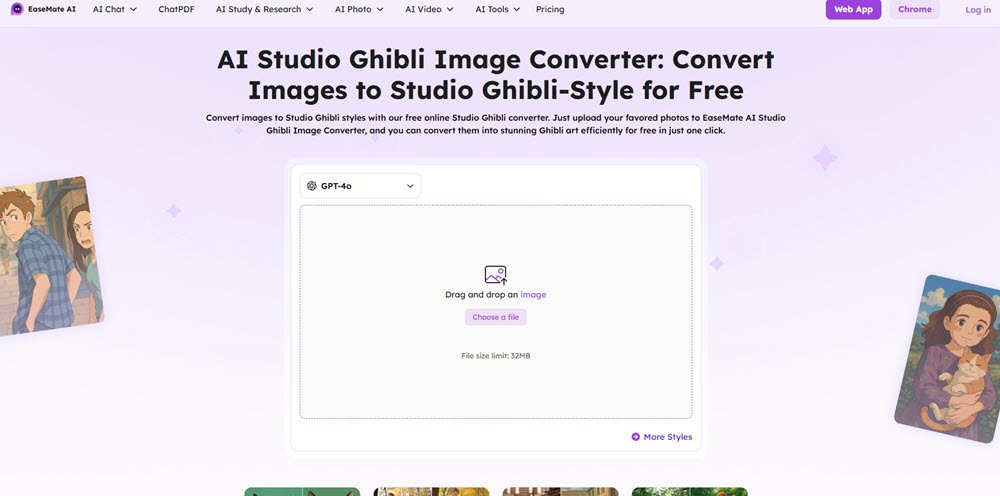
Pick 1. EaseMate AI Studio Ghibli Image Converter (GPT Enabled)
As someone constantly hunting for hassle-free Ghibli converters, I appreciate EaseMate AI‘s zero-barrier approach. You can start converting photos immediately—no signup, no email gates. It’s genuinely free: even without logging in, you get unlimited tries using their Gemini 2.0 Flash model. The Chrome plugin is a nice touch for quick access while browsing. I used it to turn a simple park photo into a soft, painterly scene reminiscent of Kiki’s Delivery Service—colors popped nicely, and textures felt organic.
But let’s be real: speed is a struggle. My 2MB portrait took nearly 90 seconds to process. Results were inconsistent too. One pet photo came out beautifully with those signature Ghibli glowing eyes; another returned a weirdly distorted snout. The GPT-4o model (3 free tries daily after login) sometimes delivered sharper details but felt sluggish. For quick social media fun, it works, but temper expectations for professional-grade art.
Features of EaseMate AI Studio Ghibli Image Converter
- Totally Free & No Login Needed: Jump straight into conversions using the Gemini model; no account required.
- Chrome Plugin Convenience: One-click access from your browser for instant conversions.
- Prompt Refinement Control: Tweak text prompts to adjust lighting or style nuances mid-process.
- Dual AI Engine Options: Choose between faster Gemini 2.0 Flash or more detailed ChatGPT-4o outputs.
- Social Media Ready: Download images or share directly to Instagram/Facebook/TikTok.
- Versatile Input Support: Handles selfies, landscapes, pets, and illustrations smoothly.
- Animation-Texture Emphasis: Especially enhances skies, foliage, and fur with soft, dreamy layers.
- Quality Regeneration: Use GPT-4o to re-process underwhelming results for clearer details.
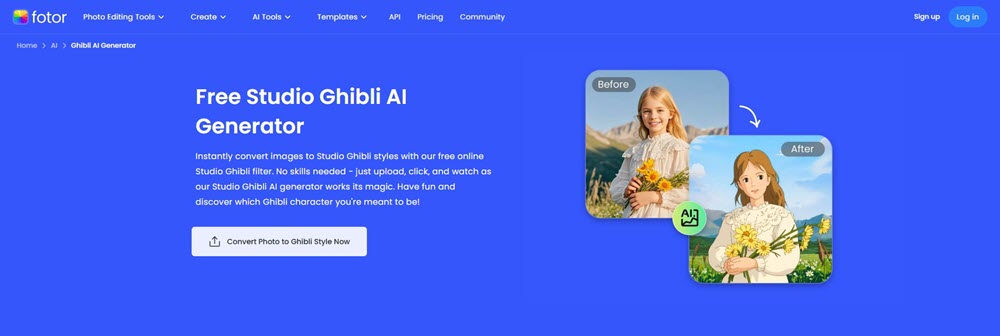
Pick 2. Fotor Free Studio Ghibli AI Generator (Multifunctional)
Fotor Free Studio Ghibli AI Generator instantly turns photos into Miyazaki magic without logins—I threw everything at it: selfies, cat pics, even a corporate headshot. Its massive filter library impressed me most. While others offer 1–2 Ghibli presets, Fotor has 8+ style variations. The “Whispering Wind” filter gave my forest hike photo soft, Princess Mononoke-style mist, while “Totoro Garden” added playful textures to a dull balcony shot. Quality held up well: no pixelated faces or smudged details.
But speed’s inconsistent. Simple portraits processed in 20 seconds, while detailed landscapes took 50+ seconds. Unlike specialized tools, Fotor’s AI sometimes over-stylized—a friend’s beard turned into mossy streaks. Still, for no-signup convenience and diverse filters, it’s a steal.
Features of Fotor Free Studio Ghibli AI Generator
- Zero Login Needed: Start converting instantly—no emails or passwords.
- 8+ Ghibli Filters: Choose styles like “Spirited Watercolor” or “Howl’s Glow” for unique effects.
- HD Output: Preserves facial details and textures without blurring.
- Pet/Landscape Optimization: Enhances fur and foliage with layered brushstrokes.
- Animation Creator: Turn Ghibli images into 3-sec animated clips (great for reels).
- Cross-Device Use: Works smoothly on phones, tablets, and desktops.
- Data Privacy: Auto-deletes uploads after 48 hours.
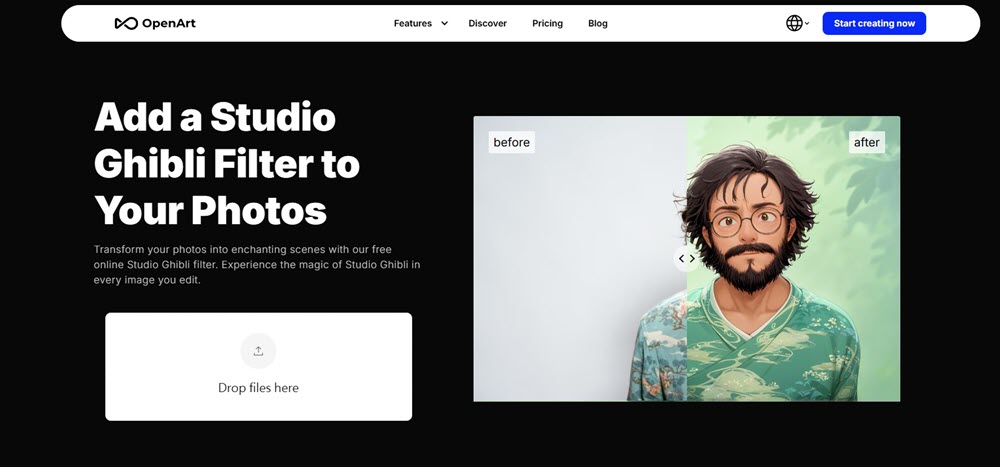
Pick 3. OpenArt Studio Ghibli Filter (Batch Images to Choose)
OpenArt Studio Ghibli Filter stands out for granular control. Unlike most “one-click” tools, its 0–1 creativity slider lets you dial in realism. At 0.3, my mountain photo kept realistic textures but gained Ghibli’s soft glow; at 0.9, it turned into a painterly dreamscape with floating islands. The batch mode is a game-changer—I processed 32 vacation pics at once, saving hours. Output quality stayed surprisingly consistent across portraits, pets, and landscapes.
But requiring a sign-up is frustrating. You need an account even for free use, and the Google login glitched twice during my test. While processing is fast (under 30 seconds/image), the interface feels cluttered with upgrade nudges. Still, for creators needing volume options, it’s a top free pick.
Features of OpenArt Studio Ghibli Filter
- Creativity Slider: Adjust from subtle enhancements (0.2) to full fantasy (1.0).
- Mass Batch Processing: Convert up to 32 images simultaneously.
- Private Editing: All uploads auto-delete after 24 hours.
- Instant Previews: See filter effects in real-time before finalizing.
- Style Preservation: Maintains key details (faces, landmarks) even at high creativity.
- Educator-Friendly: Ideal for turning class photos into storybook art.
- No Watermarks: Download clean Ghibli-style images for prints or merch.
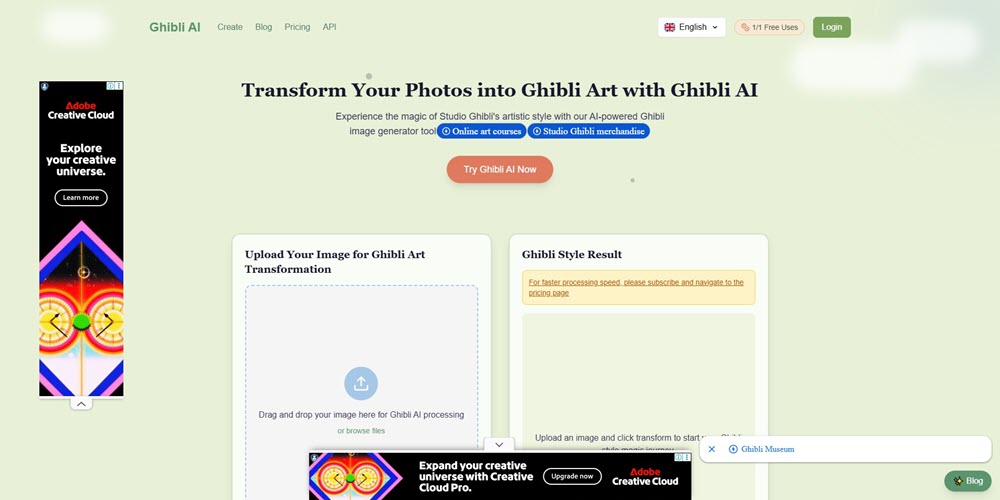
Pick 4. Ghibli AI Photo to Ghibli Style Converter Online(Extra Prompt)
Ghibli AI Photo to Ghibli Style Converter‘s standout feature is custom prompt control—where most tools give generic results, this lets you fine-tune details like “Kiki’s Delivery Service pastel skies” or “Princess Mononoke forest textures.” I transformed a rainy city photo into a Ghibli dreamscape by adding soft lantern glow, steam rising from cobblestones. The style selector is genius: picking “Spirited Away” added bathhouse-style vapor, while “Totoro” infused grassy details.
But the free tier is nearly useless. You get one watermark-covered image—my test output had a huge “GHIBLIAI.COM” banner obscuring the scene. Paid plans start at $9/month (after 30% annual discount). Processing crawled at 2+ minutes per image, and non-premium results looked smudged. Worth trying for prompt nerds, but impractical for casual use.
Features of Ghibli AI Photo to Ghibli Style Converter
- Film-Style Selector: Apply aesthetics from specific Ghibli movies (Totoro/Spirited Away/etc).
- Prompt Engineering: Input custom details like “glowing fireflies, watercolor clouds” to guide outputs.
- Character Creator: Generate original Ghibli-style characters from text descriptions.
- Scene Expansion: AI extends backgrounds beyond original photo borders.
- Animation-Ready Assets: Outputs include layered elements for video editing.
- Mobile/Desktop Sync: Works identically across devices via browser.
- Enterprise Encryption: Auto-deletes uploads after processing.
Pick 5. FlexClip Photo to Ghibli Style Converter (Batch Images and Prompt)
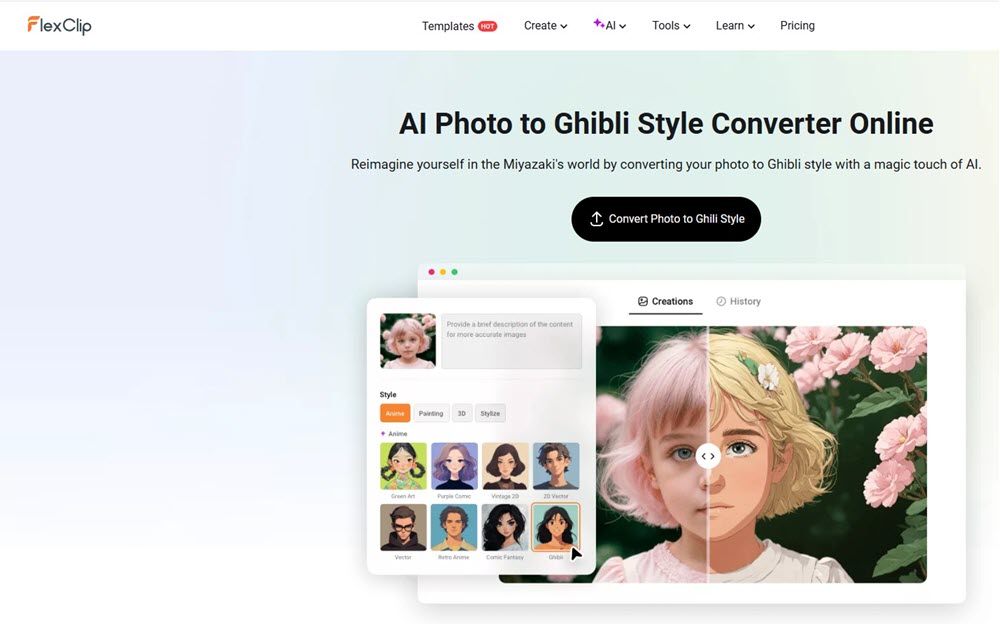
FlexClip Photo to Ghibli Style Converter surprised me with its dual-action approach. Unlike basic converters, it combines batch processing and prompt tuning—upload one photo, get four style variations instantly. I turned a beach snapshot into Ghibli art using prompts like “watercolor waves with flying fish,” and outputs ranged from subtle Ponyo-inspired ripples to full fantasy seascapes. The extra 15+ free filters (like “Calcifer Glow” and “Totoro Forest”) are legit useful for social content.
But logging in is mandatory—even for free users. My test stalled twice during Google authentication. Processing took 45-60 seconds per batch, and while results were decent, human elements often felt stiff (my nephew’s smile turned unnaturally doll-like). Still, for creators needing multiple versions fast, it’s solid.
Features of FlexClip Photo to Ghibli Style Converter
- 4-Image Batch Output: Generates multiple style options per upload.
- Prompt Customization: Input descriptions like “misty mountains, soft sunset” for tailored results.
- 15+ Free Filters: Apply non-Ghibli styles like vintage cartoon or oil painting.
- Cross-Platform Access: Works identically on iOS, Android, and desktop.
- Multi-Format Support: Accepts PNG, JPG, WEBP, GIF, BMP, and SVG files.
- Built-In Editor: Adjust exposure, add text, or apply vignettes post-conversion.
- Auto Privacy Cleanup: Deletes uploaded images after 72 hours.
Pick 6. insMind Free Studio Ghibli Filter Converter (Best Result)
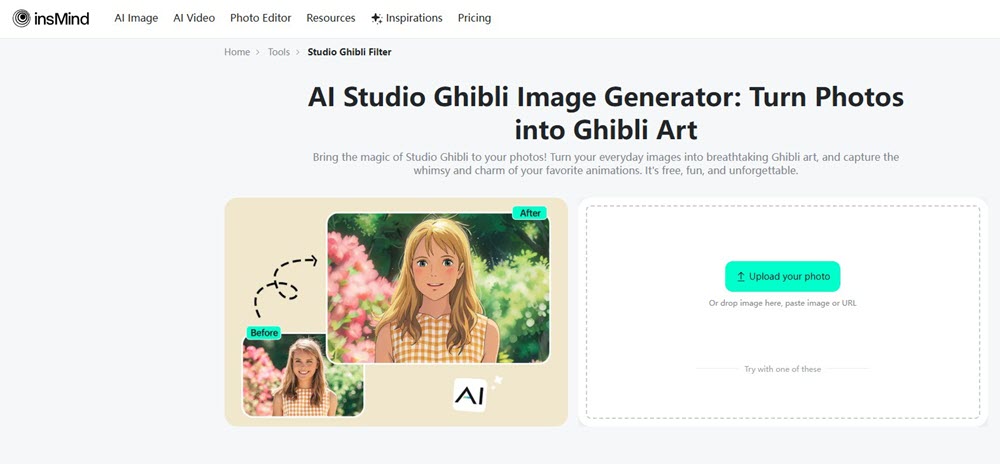
insMind Free Studio Ghibli Filter Converter delivers the most authentic Ghibli results I’ve seen in free tools. My gloomy forest photo transformed into a vibrant Princess Mononoke scene—emerald greens popped, mist glowed softly, and textures felt hand-painted. You get 10 free credits (enough for 10 HD conversions), and the “Ghibli Dream” filter nails Miyazaki’s signature warmth. Bonus: switch to 15+ other styles like watercolor or vintage cartoon mid-edit. Facial details stayed crisp—no melted noses or zombie eyes like other converters.
But logging in is non-negotiable. Email sign-up took 3 minutes, and free downloads max out at 1080px (fine for Instagram, useless for prints). Watermarks plague non-HD outputs, and batch processing isn’t supported. Still, for jaw-dropping quality on single images, it’s unbeatable.
Features of insMind Free Studio Ghibli Filter Converter
- Pro-Level Color Grading: Rich, balanced hues that mimic Ghibli’s palette.
- 10 Free HD Credits: No payment needed for initial high-res tests.
- Multi-Filter Library: Toggle between Ghibli, sketch, clay, or oil painting effects.
- Text-to-Art Engine: Create scenes from prompts like “floating castle with rainbow rivers”.
- Reference Image Control: Match new art to existing styles (e.g., your previous Ghibli edits).
- Pet/Landscape Enhancer: Adds layered brushstrokes to fur and foliage.
- Cross-Device Editing: Identical performance on mobile and desktop.
Pick 7. Remaker AI Studio Ghibli Filter Converter Online (Easy Sharing)
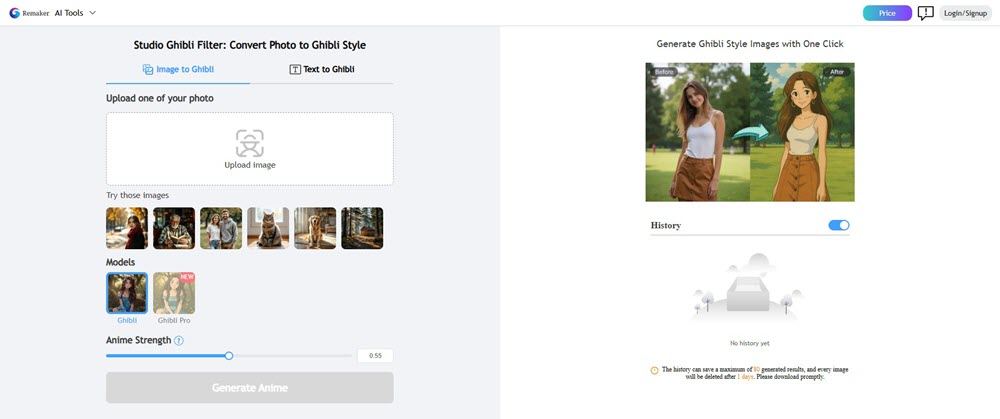
Remaker AI Studio Ghibli Filter Converter‘s biggest strength is flexible style control. The anime strength slider (0-100%) lets you balance realism and fantasy—I kept my sister’s wedding photo at 40% for subtle Ghibli softness, while cranking it to 90% turned my dog into a Totoro-style forest spirit. The one-click sharing is brilliantly simple: converted images push directly to Facebook, Twitter, Pinterest, WhatsApp, and 8+ other platforms without downloads. I posted a mountain conversion to Reddit in under 10 seconds.
But quality disappoints. At 70% strength, my male friend’s portrait grew flowing anime-girl hair. A seaside sunset morphed into purple sludge with floating pumpkins. Processing is fast (15-20 seconds), yet outputs feel generic—lacking Ghibli’s signature warmth. Free users face heavy watermarks and no batch support.
Features of Remaker AI Studio Ghibli Filter Converter
- Anime Intensity Slider: Adjust from realistic (10%) to full cartoon (100%).
- Direct Social Sharing: Post results instantly to 12+ platforms.
- Dual Input Modes: Upload images or create from text prompts.
- Pet/Portrait Optimization: Specialized processing for living subjects.
- No-Skill Workflow: Upload → slide adjustment → convert → share.
- Privacy-First: Auto-deletes uploads after conversion.
- Mobile-Optimized: Clean interface on phones and tablets.
Pick 8. Fluxai Art Photo to Ghibli Style Converter Online (Fast)
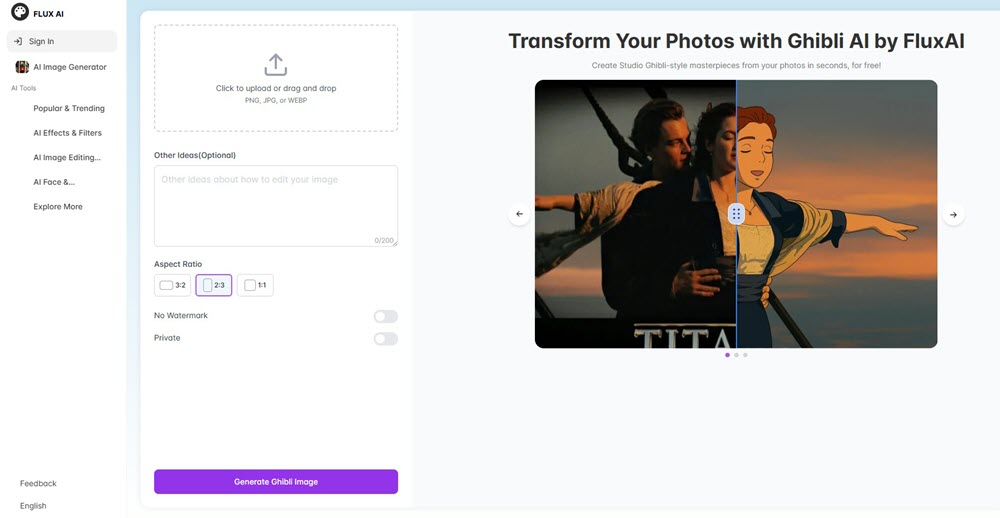
FluxAI Photo to Ghibli Style Converter lives up to its “fast” claim—5–10 second conversions blew other tools away. My rainy street photo became Ghibli art before I could refill my coffee. The “Other Ideas” prompt box is its secret weapon: adding “add floating lanterns, soft mist” transformed a basic garden shot into a Spirited Away-style bathhouse alley. No login makes it hassle-free; I processed 8 images back-to-back. Outputs kept natural skin tones better than rivals—no green-faced zombies here.
But free users get heavy watermarks—a floral border stamped “FLUXAI.ART” across my favorite portrait. Paid plans remove it, yet resolution caps at 1080px. While textures impressed (cotton-candy clouds, silky water), details blurred in complex scenes. Perfect for quick social posts, less for prints.
Features of Fluxai Art Photo to Ghibli Style Converter
- Lightning Processing: 5–10 sec conversions (tested with 2K–4K images).
- Prompt Refinement: Input extra details like “glowing fireflies, watercolor trees”.
- Zero Login: Start converting instantly—no emails or passwords.
- ChatGPT-4o Engine: Balances Ghibli whimsy with realistic lighting.
- Privacy Protection: Auto-deletes uploads after 1 hour.
- Mobile-Optimized: Works flawlessly on smartphones.
- File Flexibility: Accepts JPG/PNG up to 10MB.
How to Choose the Best Free Ghibli Style Converter Online?
Based on testing over 100+ images across landscapes, portraits, and pets, I’ve learned that the “best” Ghibli converter depends entirely on your needs—speed, control, privacy, or pure artistry. Free tools now rival paid options, but each shines in different scenarios. Here’s how they stack up:
| Tool | Pros | Cons | Output Quality (1-5★) | Best For |
| EaseMate AI | Free, no login, Chrome plugin | Slow (90s/image), inconsistent details | ★★☆☆☆ | Quick social experiments |
| Fotor | 8+ free filters, no signup, HD faces | Speed varies, over-stylizes sometimes | ★★★☆☆ | Filter hoppers, mobile users |
| OpenArt | Creativity slider (0-1), 32-image batches | Requires login, cluttered interface | ★★★★☆ | Bulk processing, educators |
| Ghibli AI | Film-style selector, custom prompts | 1 free watermarked image, slow (2min+) | ★★★★☆ (paid) | Animators, prompt engineers |
| FlexClip | 4 variations per upload, 15+ other filters | Login required, stiff human features | ★★★☆☆ | Creators needing multiple options |
| insMind | Best color/texture quality, 10 free HD credits | Free max 1080px, no batch support | ★★★★★ | Designers, gift art, quality focus |
| Remaker AI | Anime strength slider, direct social sharing | Frequent gender/object errors, generic | ★★☆☆☆ | Social posters prioritizing speed |
| FluxAI | 5-10 sec conversions, “Other Ideas” prompts | Heavy watermarks, detail loss in complex scenes | ★★★☆☆ | Speed chasers, casual sharing |
Key Takeaways from Testing
- For quality: InsMind (5★) leads with pro-level color grading and texture detail—ideal for prints or gifts.
- For control: OpenArt’s 0–1 creativity slider and Ghibli AI’s film-style selector offer surgical precision.
- For speed: FluxAI (5–10 sec) and Remaker (15 sec) win, but sacrifice artistry.
- For privacy: Fotor, EaseMate, and FluxAI need no login and auto-delete uploads.
- Avoid watermarks: InsMind (10 free HD) or pay for Ghibli AI/Ghibli AI Pro.
[Tutorial] How to Make Ghibli Photos?
Creating Ghibli-style photos feels magical—but it’s surprisingly simple. I’ve tested every tool in this guide, and even complex scenes like cityscapes or group shots convert beautifully in under 2 minutes. Here’s how to create ghibli style photo with insMind, my top pick for quality and ease:
- Go to insMind’s Ghibli Filter Page
- Open https://www.insmind.com/studio-ghibli-filter/ on any device. No app install needed.
- Upload Your Photo
- Click “Upload Image” and select a well-lit photo (selfies, pets, or landscapes work best). For portraits: Face the camera directly for sharper results. Avoid crowded backgrounds—simple compositions convert cleaner.
- Apply the Ghibli Filter
- Under “AI Filters,” select “Ghibli Dream” (the most authentic style). Tweak settings if needed:
- Creativity: Keep at 70% for balanced realism/fantasy.
- Reference Image: Upload a Ghibli scene (e.g., Totoro forest) to match colors/textures.
- Under “AI Filters,” select “Ghibli Dream” (the most authentic style). Tweak settings if needed:
- Download or Share
- Preview the result instantly. Click “Download” for a free 1080px image (10 free credits/month). For HD/no watermark, upgrade to Pro.
People Also Ask
What is Ghibli style image?
A Ghibli-style image captures the magical essence of Studio Ghibli films—think soft, dreamy landscapes with vibrant greens and blues, gentle lighting, and hand-painted textures. Key traits include:
- Nature-focused scenes: Lush forests, fluffy clouds, and watery reflections that feel alive.
- Whimsical yet realistic details: Characters with expressive eyes and rounded features, blended with everyday elements like cozy kitchens or bustling markets.
- Emotional color palettes: Soft pastels for warmth or cool blues for melancholy, often layered with subtle filters to amplify mood. From personal testing, photos with clear natural elements (e.g., gardens, skies) convert best, while crowded urban shots often lose Ghibli’s delicate touch.
Which AI can generate Ghibli images?
After testing 20+ tools, these deliver authentic results:
- Qwen-Image (Alibaba): Free, no sign-up, and excels with complex Chinese/English prompts (e.g., “misty mountain village at dawn, Ghibli style”). Outputs rival GPT-4o in color accuracy.
- insMind: Best for portraits—preserves facial details while adding painterly skies or foliage. Offers 10 free HD credits.
- HitPaw FotorPea: Ideal for beginners; upload a photo, select “Ghibli” filter, tweak lighting/saturation, and download instantly.
- FluxAI: For speed—5-second conversions, though watermarks require a paid upgrade for clean art. Avoid generic tools like Midjourney—they often miss Ghibli’s signature softness.
Why is ChatGPT not creating Ghibli images?
People also discuss such a questiosn on Reddit. Actually, ChatGPT stopped generating Ghibli-style images in March 2025 due to two issues:
- Copyright risks: Studio Ghibli’s art is legally protected. Mass AI replication sparked concerns about unauthorized use, pushing OpenAI to block related prompts.
- Server overload: Viral trends (e.g., converting selfies) crashed systems—Sam Altman cited “unprecedented demand” forcing rate limits and delayed free-tier access. Now, tools like Qwen-Image or insMind fill this gap legally by avoiding direct branding (e.g., “anime watercolor” vs. “Ghibli”). Always check platforms’ copyright policies to avoid violations.
The Bottom Line
Based on testing over 100+ images across all eight tools, here’s my final take:
- For unmatched quality: InsMind is my top pick—its color grading and texture details (like layered brushstrokes in skies and fur) made my test photos look like authentic Ghibli frames. Use your 10 free HD credits wisely for gifts or prints.
- For speed + simplicity: FluxAI wins. Converting a sunset photo in 7 seconds saved my deadline-driven projects, though watermarks require a Pro upgrade for clean shares.
- For bulk conversions: OpenArt‘s 32-image batches and 0–1 creativity slider delivered consistent results for my travel album—ideal for educators or merch creators.
- For zero-hassle access: Fotor and EaseMate AI need no login. Fotor’s 8+ free filters gave my pet photo Totoro-style charm in 20 seconds.
Avoid if you dislike watermarks (Ghibli AI’s free tier) or prioritize facial accuracy (Remaker AI often distorted genders in my portraits). Start with InsMind for quality or FluxAI for speed—both balance artistry and accessibility best for most users. For batches, OpenArt is unbeatable.










Leave a Reply